Chat & Responses
Multi-turn conversations, regenerating and editing what you sent, reading thinking and sources, and how history is stored.
Chat mode Paid plan
What it is. A single switch that decides whether Triplo remembers the conversation.
How to reach it. The speech-bubble icon in the bottom bar, or Cmd+Shift+C. On by default.
| Chat mode on | Chat mode off | |
|---|---|---|
| What is sent | Every previous turn, plus the new one | Only the new prompt |
| Follow-ups | "Now make it shorter" works | The model has no idea what "it" is |
| Tokens per prompt | Grows with the conversation | Constant |
| Screen | Messages accumulate | Replaced each time |
| Good for | Thinking something through | Repeated one-shot tasks |
Turn it off when you are doing the same operation over and over — translating a run of phrases, tidying paragraph after paragraph. Each prompt then stays cheap and cannot be contaminated by the last one.
Prompts run from a hotkey in the background are always single-turn, whatever this switch says. That is deliberate: a background prompt should behave identically every time.
An agent session locks this on. An agent session is a conversation by definition, so while one is open the button goes dim and neither it nor the hotkey does anything. Your own setting is untouched: pick an ordinary model again and it comes back exactly as you left it.
Stopping a response
While a response is generating, the paperclip in the prompt bar becomes a stop square. Click it to abort. Esc does the same when no panel is open — press it again to hide the window.
Whatever had already streamed is kept, so a long answer you have seen enough of can be cut short without losing it. This matters most with agents, which can work for minutes before replying.
Clearing the conversation
Shift+Backspace with the input empty clears the screen and starts fresh. It also aborts a response that is still streaming.
Working with a response
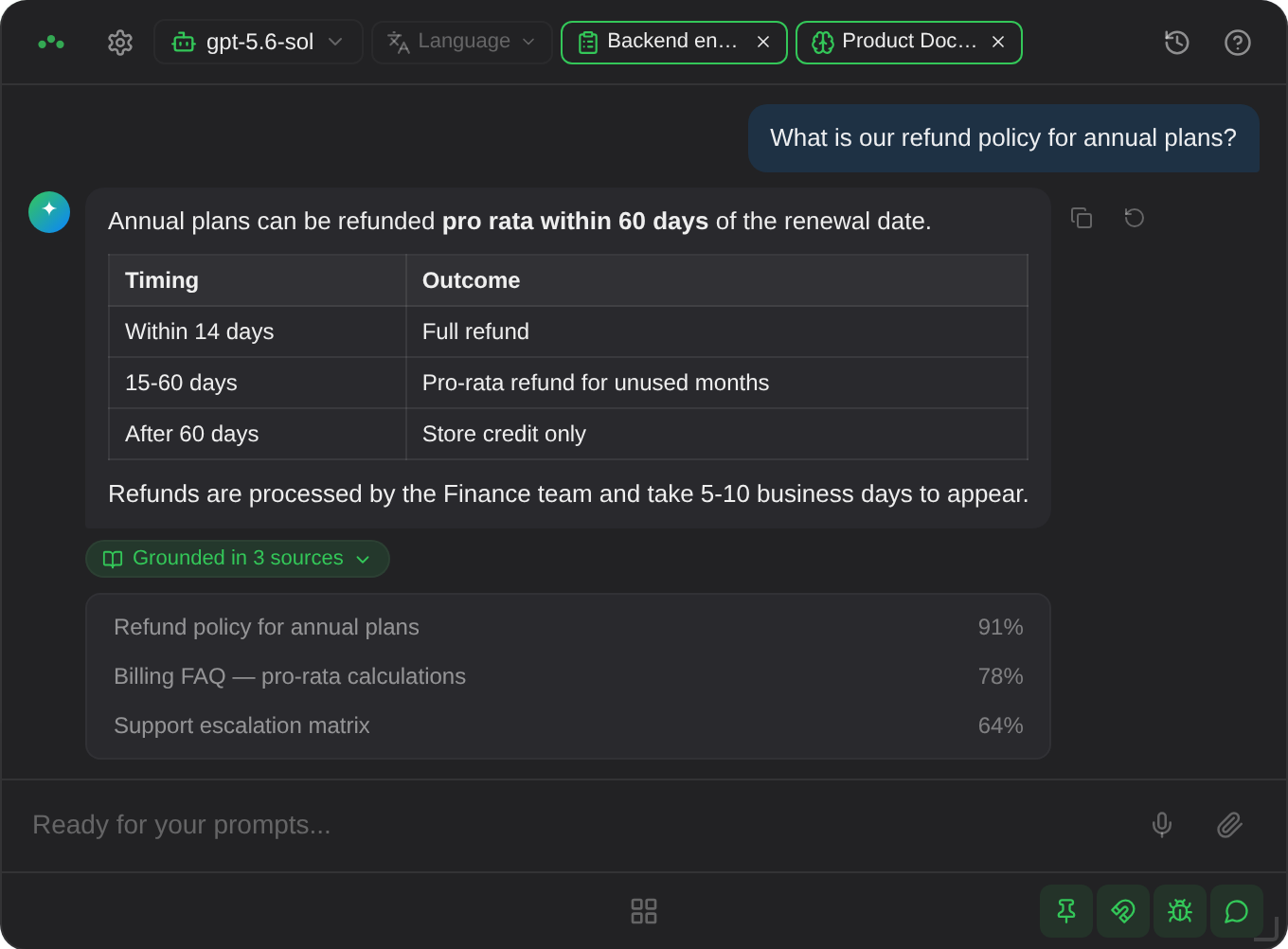
Responses render as Markdown — headings, lists, tables, code blocks and links all display properly. Hovering over a message reveals its controls.
Copies the raw Markdown, not the rendered text. A tick confirms.
In the prompt bar, Cmd+C does the same for the last response — as long as nothing is selected, so copying your own text still behaves normally. It takes the last real answer, skipping notes and error messages, and confirms nothing.
On an AI message. Discards that response and everything after it, then re-runs the same prompt.
Useful when an answer is close but flawed, or when you have switched model and want the same question answered again.
On your own message. Opens it for editing; sending resubmits from that point and drops everything that followed.
This is how you correct a badly worded prompt without retyping the whole exchange — the conversation before it is preserved.
Thinking bubbles
Reasoning models emit their working before the answer. Triplo shows it in a collapsible Thinking block above the response, expanded while streaming so you can watch the approach form, and collapsible once the answer arrives.
Turn it off under Settings → Preferences → Show Thinking Bubbles. Models that do not produce reasoning simply never show the block.
Grounded sources
When a Mind contributed to an answer, a chip beneath it reads Grounded in N sources. Expand it to see each source with a relevance percentage, and click any one to open that file on disk.
This is the fastest way to check whether an answer really came from your material or from the model's own knowledge. No chip means the Mind contributed nothing — worth knowing before you trust the answer.
Copy every response automatically
Settings → Preferences → Copy Responses to Clipboard puts each finished response on your clipboard, ready to paste. Off by default, since it overwrites whatever you had.
When a response fails
Errors appear in the conversation as a message beginning ⚠️ Error:, carrying the status and text the provider returned. The conversation is not lost — fix the cause and use Regenerate on the failed message.
Triplo also handles two provider quirks silently: endpoints that ignore streaming get retried without it, and endpoints that stream without announcing it are parsed as streams anyway. Either way you get your answer; the only visible difference is whether it arrives progressively or all at once.
Specific messages are catalogued in Error messages.
Knowing when it is done
Two cues, both useful when the window is hidden:
- Sounds. One when a prompt is sent, another when the response completes. Turn them off under Settings → Preferences → Notification Sounds.
- The status dot. A small floating indicator that shows ready, working or error, above every window including full-screen apps. Configure under Settings → Status Dot; see Appearance.
Both matter most with background execution, where there is no window to watch.
History Paid plan
What it is. Every foreground conversation, saved automatically and searchable later.
How to reach it. The clock icon at the top right.
Conversations save as you go, titled from your first message. Click one to reload it; you can carry straight on from where it stopped, with full context restored — including any attachment or SmartPrompt chips, which reload expanded so continuing the chat keeps the model's original context.
Agent sessions are saved the same way and reopen the same way, with one addition: the entry remembers the agent's session and its folder, so reopening it brings back the agent's own context, not just the text. Each session is its own entry.
What is not saved
- Prompts run in the background from a hotkey.
- Raw pass-through prompts starting with
//. - Anything at all, if your plan does not include history.
Where it is stored
One Markdown file per conversation in ~/Documents/Triplo AI/History/. Readable in any editor, greppable from a terminal, and included in a backup. Deleting from the sidebar deletes the file.
History is not shared between your devices. It stays on the machine that created it. Use Backup to move it deliberately.