Prompting
The prompt bar in full — SmartPrompts, awareness tags, attachments, web scraping, voice, output languages, and the raw pass-through escape hatch.
The prompt bar
The input in the middle of the window is where everything starts. It is not a plain text box: it holds chips alongside your text. A chip is a compact stand-in for something much larger — a SmartPrompt template, an attached file, or a piece of text captured from another app.
| Key | Does |
|---|---|
| Enter | Send the prompt |
| Shift+Enter | New line without sending |
/ | Open the SmartPrompt list |
// | Open the tag and command list — //selected//, //clipboard//, and commands such as //model |
| ↑ ↓ | Move through suggestions |
| Tab or Enter | Insert the highlighted suggestion |
| Esc | Close suggestions; press again to hide the window |
| Shift+Backspace | Clear the conversation, when the input is empty |
| Cmd+C | Copy the last response, when nothing is selected |
The input takes focus automatically whenever the window appears, so Option+Space then typing always works.
The input grows with your text and then scrolls, so a long prompt or a large paste never pushes the rest of the window off screen.
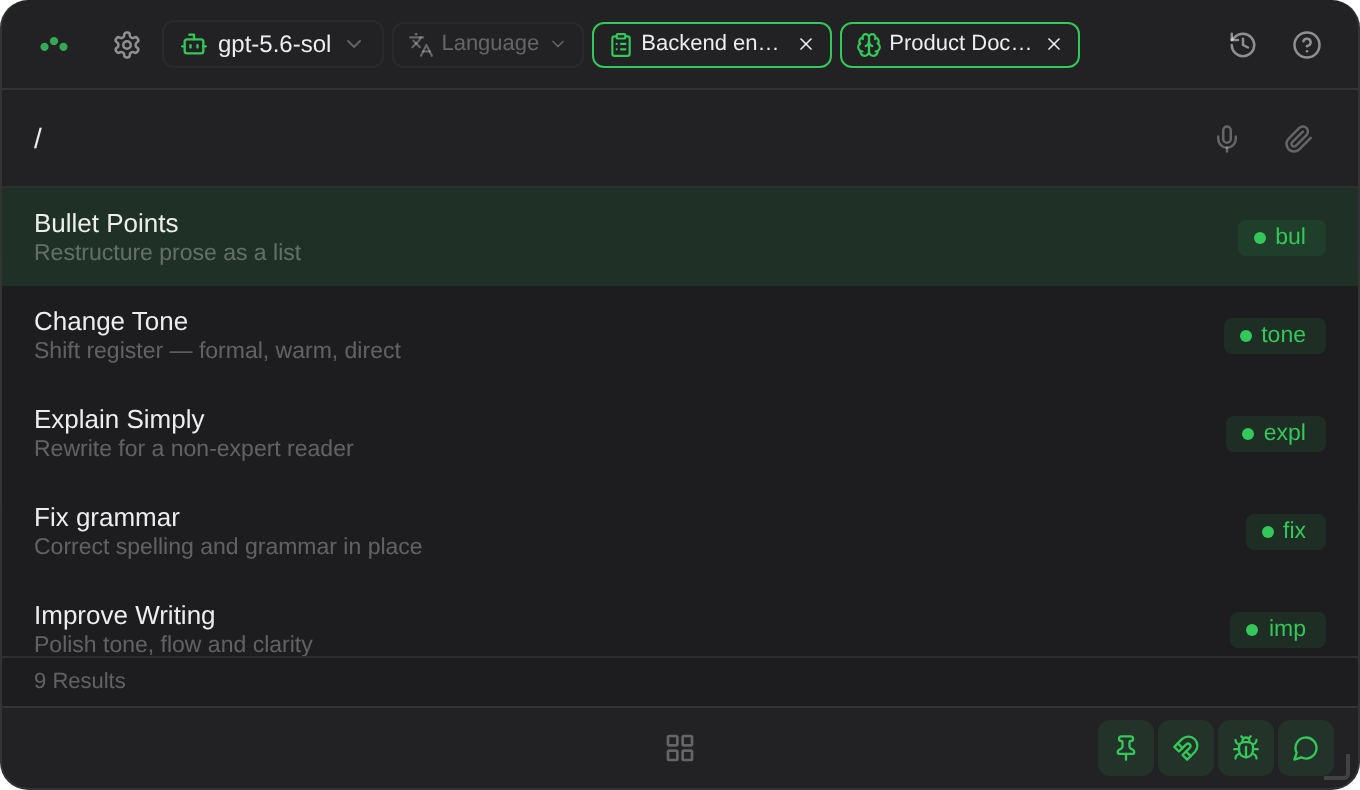
/ opens the SmartPrompt list. The green chip on the right is the command; keep typing to filter by either the command or the name.SmartPrompts
What they are. Saved prompt templates behind short commands. Rather than writing "summarise the following, keeping technical terms, in no more than five bullet points…" every time, you type /sum. Triplo ships with hundreds covering writing, translation, code, analysis and email.
Using one
/The list opens. Typing / on its own shows everything.
Keep typing. Triplo matches on both the command and the display name, so /lin finds a prompt named LINGUA even though its command is something else.
The typed text collapses into a chip and the cursor moves after it.
Type after the chip, paste, attach a file, or add //selected//. Press Enter.
Triplo never converts a word into a SmartPrompt on its own, even when it matches a command exactly. If it did, typing "Important" would silently collapse into the /imp prompt. You always confirm with Tab or Enter.
Position matters
Chips expand in place. [Summarise] //selected// and //selected// [Summarise] produce different prompts — instruction-then-material versus material-then-instruction. Instruction first is usually the more reliable of the two.
Turning off the built-in library
Hundreds of general SmartPrompts can crowd out your own. Settings → Preferences → General SmartPrompts, switched off, limits the / list to prompts you created.
Writing your own Paid plan
How to reach it. Action grid → Prompts → Add SmartPrompt….
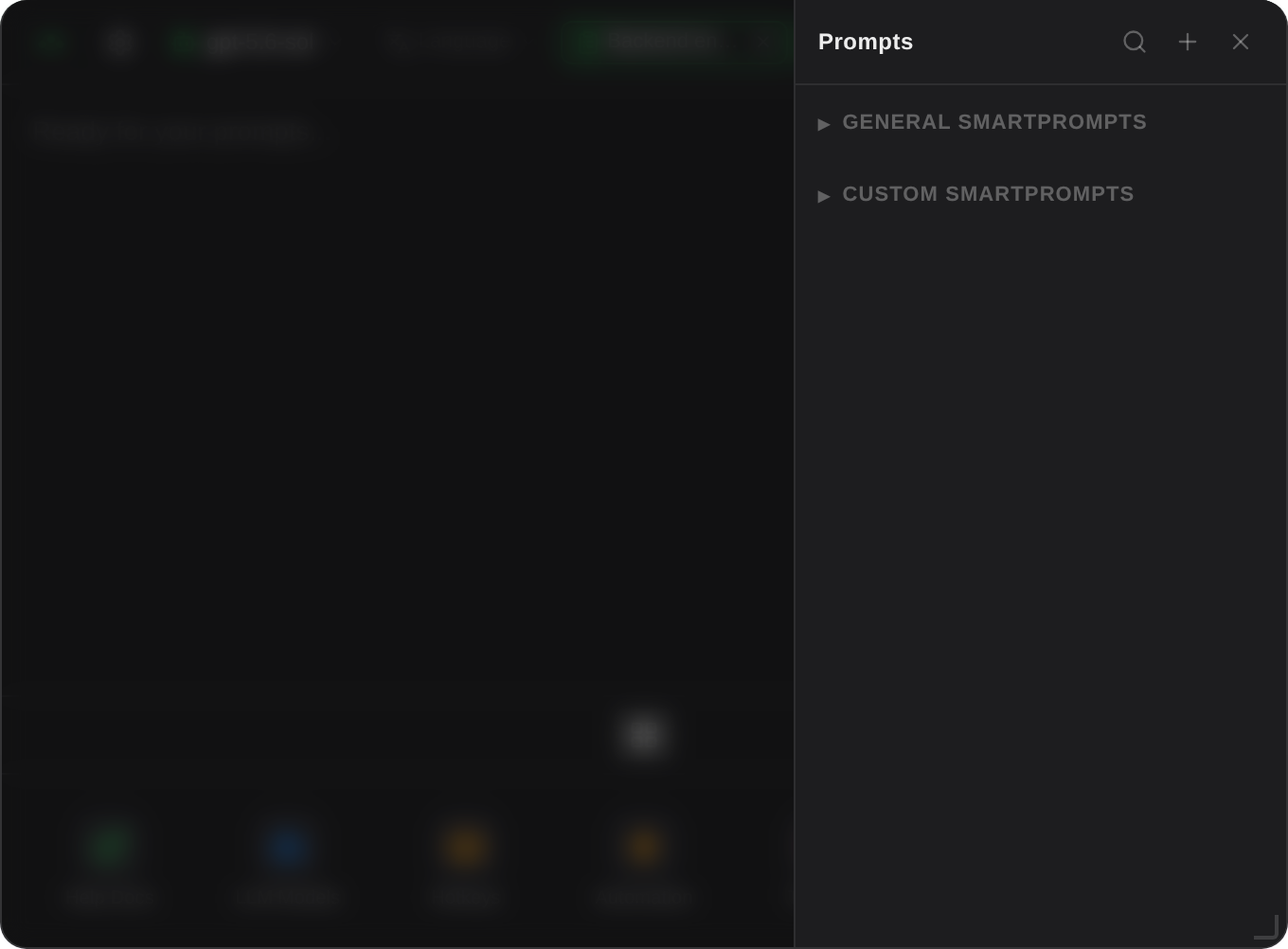
The fields
/. Keep it three or four letters and distinctive.Writing a template that behaves
The template is prepended to your material, so write it as an instruction addressed to the model, and be explicit about the output. A prompt destined for a hotkey should say so — its result gets pasted straight into your document, so any preamble ends up there too.
Example — a release-note prompt
Release note from commits, command rel.
In your terminal, run git log --oneline and select the output. In Triplo: /rel, Tab, then //selected//, then Enter.
//selected// into the quoted log in your prompt.Cloning instead of starting blank
Any built-in or shared prompt has a copy button. Cloning gives you an editable duplicate with the original intact — the fastest way to make a house style out of something that is nearly right.
Limits & gotchas
- Built-in and shared prompts cannot be edited or deleted — clone them instead.
- Saves are rate-limited to one per second per prompt. If you see Save rate limited, wait a moment.
- Two prompts with the same command: the first found wins. Keep commands unique.
- Each custom prompt is a Markdown file you can edit directly. See File formats.
Awareness — selected text and clipboard Paid plan
What it is. Two tags that pull content in from outside Triplo at the moment you send.
//selected////clipboard//How to use them. Type // and pick from the list, or type the tag in full — it converts to a chip as soon as you finish it. Both are on by default under Settings → Preferences.
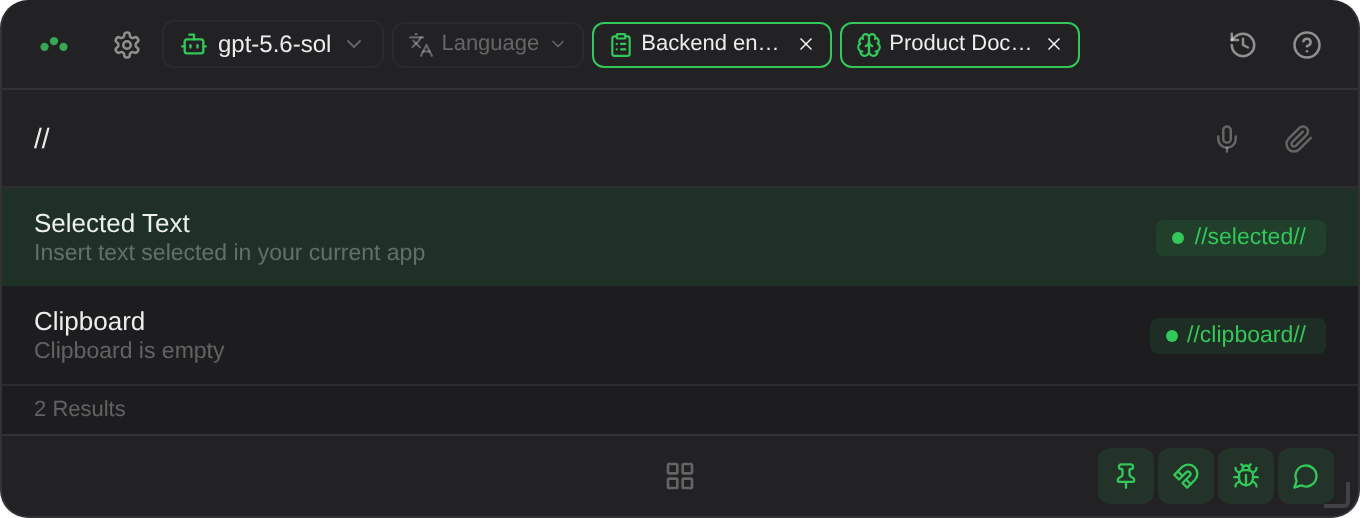
// offers the two awareness tags. The clipboard entry previews what will be inserted; the selection entry deliberately does not.How they behave when sent
The tag stays a placeholder until you press Enter. Only then does Triplo capture. For //selected// it hides the window, brings your previous app forward, copies the selection, restores your clipboard and shows itself again — fast enough to be barely visible.
In the chat the captured text appears inside 「corner brackets」 so you can see exactly what was picked up. If nothing was selected you get [no selection]; an empty clipboard shows [empty clipboard].
Why clipboard previews and selection does not. The suggestion list shows the first few words of your clipboard, because reading it changes nothing. Showing a preview of your selection would mean performing a copy, which would overwrite whatever you had on the clipboard just to render a hint. Triplo will not do that, so the selection tag stays unlabelled until you send.
Permissions
//selected// needs your OS's cooperation. Setup per platform is in Getting Started. Switching Awareness Mode on prompts macOS for Accessibility permission immediately.
Limits & gotchas
- macOS: without Accessibility permission the capture silently returns nothing. Grant it, then restart Triplo.
- Wayland: some compositors do not expose the primary selection at all. Install
wl-clipboard; if it still fails, that is a compositor limitation. - Selection capture uses a synthetic copy. Applications that block synthetic keystrokes — some password managers and secure fields — will not yield text.
- Turning off Awareness Mode does not break existing prompts; the tag is simply stripped before sending.
- Hotkey-run SmartPrompts capture the selection automatically. Do not add
//selected//to a prompt you intend to use that way, or it will be captured twice.
Files, images and audio
How to reach it. The paperclip in the prompt bar, or paste an image directly.
Everything becomes text before it is sent. A document is extracted, an image is described by a vision model, audio is transcribed. The model never receives the original file.
| Kind | Formats | What happens |
|---|---|---|
| Documents | PDFDOCXDOCTXTMDCSVJSONXMLHTMLRTF | Text extracted locally and inlined. HTML has its tags stripped. |
| Images | PNGJPGGIFWEBPSVGBMP | Sent to Triplo's vision endpoint; the returned description is inlined. |
| Audio | MP3WAVM4AOGGWEBMFLACAAC | Sent to Triplo's transcription endpoint; the transcript is inlined. |
An attachment shows as a chip with an icon — 📎, 🖼️ or 🎵 — and an hourglass while media is processing. A ⚠️ means processing failed; the prompt still sends, with a note in place of the content.
Pasting
Paste always prefers text. Applications like Word and Excel put a rendered image and the real text on the clipboard; taking the image would lose the content, so Triplo takes the text and strips the formatting. An image is only attached when there is no text at all — a screenshot, or something copied from an image editor.
Limits & gotchas
- Attachment content is capped at 5,000 characters per file. Long documents are truncated — for those, use a Mind, which retrieves the relevant parts instead.
- Images and audio are sent to Triplo's processing endpoints even when your chosen model is local. If that matters, do not attach media.
- Scanned PDFs with no text layer extract as empty. Attach a page image instead so the vision model can read it.
- Attach several files in one prompt by clicking the paperclip more than once.
Web scraping Paid plan
What it is. With the bug icon lit in the bottom bar, any link in your prompt is fetched before sending: a web page is replaced by its text, a YouTube video by its transcript.
How to reach it. The bug icon, or Cmd+Shift+S. On by default.
How much of a page or video reaches the model, the link shapes YouTube supports, using links from //selected// and SmartPrompts, and what leaves your machine are all in Scraping.
Voice input Paid plan
What it is. Record your voice and have it transcribed into the prompt bar.
How to reach it. Switch on Settings → Preferences → Voice Features. A microphone appears beside the paperclip.
The bar becomes a live waveform. Your OS asks for microphone access the first time.
The waveform confirms audio is being picked up.
The send arrow transcribes and inserts the text at the end of the input. The ✕ discards the recording entirely.
Transcription appends rather than replaces, so you can dictate into a prompt you have already started, and edit before sending. Pick a specific microphone under Settings → Audio Input, which appears once Voice Features is on.
Limits & gotchas
- Audio is sent to Triplo's transcription endpoint, including when your model is local.
- Nothing is sent until you press send — a cancelled recording never leaves your machine.
- There is no push-to-talk hotkey. Recording is started from the button.
Output language
What it is. Forces every reply into a chosen language, whatever language you write your prompt in. 33 languages are available, grouped by region.
How to reach it. The globe in the top bar.
Set to Default, Triplo adds nothing and the model answers in whatever language it judges appropriate. Set to anything else, a directive is added as the very first system message.
Example — replying to a customer in Portuguese
Set the language to Portuguese, then write your prompt in English: "Reply politely that we cannot offer a refund after 30 days, but we can offer store credit." You think in English; the customer gets Portuguese.
Limits & gotchas
- This is a strong instruction, not a hard guarantee. Smaller models occasionally drift back.
- It applies to the whole response, including code comments.
- An Instruction that specifies a different language will conflict with it. Pick one place to state language and stay there.
- It does not translate your input; it directs the output. To translate, use a translation SmartPrompt.
- The app's own interface is English only in 7.0. The selector in Settings labelled Interface Language is not yet active.
Raw pass-through with //
What it is. Start a prompt with // and Triplo sends the rest of the line to the model and nothing else. No language directive, no Instruction, no Mind context, no automation wrapper, no conversation history.
A few // words are not text but commands: Triplo intercepts those and sends nothing at all. They are covered below.
Only at the start. The check is on the first two characters of the prompt, after trimming. A // in the middle of a line is ordinary text, and everything Triplo normally assembles still applies.
Commands are not pass-through
//model is a command, not text: type it at the start of a prompt and Triplo opens the model list in the prompt bar — type to filter, Enter to apply. Nothing is sent, and the conversation you are in carries on with the model you pick. Outside an agent session it switches the same active model the header dropdown does.
Under Pi Agent the session adds its own commands and they are routed to the agent rather than to a chat endpoint. A Hermes connection keeps its own //model, which travels to the agent untouched — Triplo stays out of the way of that name.
When to use it
- Diagnosing. If a response looks wrong, resend it with
//. Same answer means the model; different answer means something in your stack — an Instruction, a Mind, the language directive. - Driving an agent. With Pi Agent selected,
//is its command prefix: typing it lists the session's commands merged with Pi's own, filtered as you type, and the command is routed to the agent rather than to a chat endpoint. See Agents. - Provider-specific syntax. Anything that must arrive exactly as typed.
Limits & gotchas
- Pass-through responses are not saved to history.
- The chosen model still applies —
//bypasses Triplo's assembly, not your model selection. //with nothing after it returns Empty command.- Do not confuse it with the awareness tags:
//selected//and//clipboard//are complete tags, not pass-through. They are resolved into their captured text before the pass-through test runs, so they behave normally wherever they sit — including at the very start of a prompt.