Getting Started
Download, activate, grant the one permission that matters, and get a real result inside another app — in about five minutes.
1. Install
Every build lives on one page: Downloads. It marks the one for the machine you are reading this on, covers desktop and mobile, and says how to tell an Apple silicon Mac from an Intel one.
Get Triplo AI for your platform → Then come back here and pick up at step 2.
Triplo AI has no dock or taskbar icon by design. Once running it lives in your menu bar (macOS) or system tray (Windows and Linux). Click the tray icon to show or hide the window, or right-click it for Open, Settings and Exit.
Triplo AI starts with your computer by default. You can turn that off later under Settings → Preferences → Run at Startup.
2. Activate your licence
Press Option+Space to show the window, then click the gear icon in the top-left. Or right-click the tray icon and choose Settings.
Under Licensing, paste the key from your purchase email. The clipboard button next to the field pastes for you; the eye button reveals what you have typed.
Triplo registers this computer against your licence and reads back which features your plan includes.
What the states mean
Your key is recognised but this device needs approving — usually on a team or managed licence. Leave the window open and focused; Triplo re-checks automatically and flips to Active the moment approval lands. No need to click again.
Approval is not automatic and it is not yours to grant. The administrator of the licence decides which devices may be activated, and can revoke any of them at any time, from control.triplo.ai. If the status does not change, that is who to ask.
No key at all
Without a licence key, Triplo does not gate anything — every feature is reachable so you can evaluate it. Restrictions only apply once a key is validated and the server reports which features that plan includes.
Moving to a different computer
Click Revoke in Settings to release this device from your licence, then activate on the new machine. To see and manage every registered device, use Manage Devices, which opens control.triplo.ai. More detail in Devices & Sync.
3. Grant the permission that matters
Triplo's single most useful trick — acting on text you have selected in another app — needs your operating system's permission to read that selection. Without it, everything else works but //selected// silently comes back empty.
| Platform | What is needed | How to grant it |
|---|---|---|
| macOS | Accessibility permission | System Settings → Privacy & Security → Accessibility → enable Triplo AI. Triplo also prompts you the first time you switch on Awareness Mode. |
| Windows | Nothing | Works out of the box. |
| Linux (X11) | xsel or xclip |
Install either from your package manager. xdotool is used as a last-resort fallback. |
| Linux (Wayland) | wl-clipboard |
Install it to provide wl-paste. Note that some compositors do not expose the primary selection at all, in which case capture cannot work. |
On macOS you must quit and reopen Triplo AI after granting Accessibility. macOS does not apply the change to an already-running app.
4. Pick a model
Triplo needs to know which AI model to send your prompts to. Click the model selector in the top bar — the robot icon next to the gear.
If your plan includes them, Allowance Models are already listed and need no setup: they are provided by Triplo, and they are the fastest way to get moving. Pick any one and you are done. Each device gets a monthly token allocation — see how much you get.
To use your own provider or a local model instead, see Models & Connections. You can add those later — nothing below depends on it.
If you see "No model selected. Please select a model from the dropdown above." when you send a prompt, this step was skipped. Open the model selector and choose one.
5. Your first five minutes
Three exercises, in order. By the end of the third you will have used the feature most people never find.
Exercise 1 — Ask a question
The prompt bar appears over whatever you were doing.
The answer streams in below the input.
The window hides. Press Option+Space again and it comes back where you left it.
Exercise 2 — Use a SmartPrompt on text you selected
SmartPrompts are ready-made prompt templates. Triplo ships with hundreds.
An email, a document, a web page — anything.
/A list of SmartPrompts appears. Keep typing to filter — by command (imp) or by name (improve).
The prompt collapses into a coloured chip. It is a placeholder for a much longer instruction you do not have to see.
//selected// after the chip, then press EnterTriplo grabs the text you highlighted in step 1 and runs the SmartPrompt against it.
//selected// comes back empty.Exercise 3 — Do it all without opening the window
This is the one that changes how you work. You will assign a hotkey to a SmartPrompt so it runs in the background and pastes the result straight back into the app you were in.
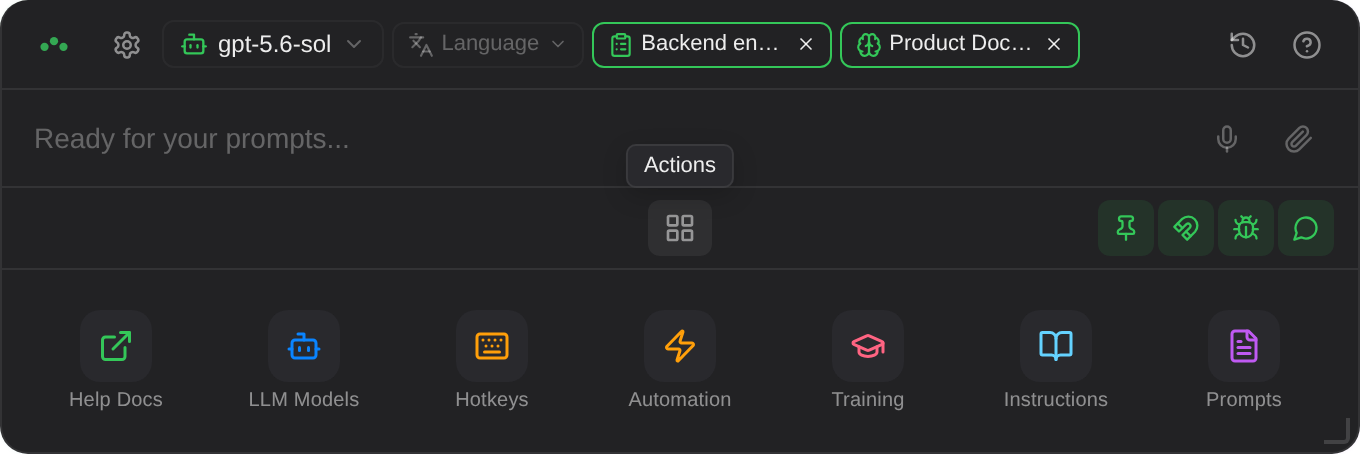
Click the grid icon at the bottom of the window, then Prompts.
Under Custom SmartPrompts, click Add SmartPrompt…. Give it a title such as Fix grammar, a command such as fix, and this as the prompt:
In the same editor, click the Hotkey field and press your combination — Cmd+Shift+F, say. Triplo warns you if it is already taken. Click Create.
Switch to any app. Select a sentence with a typo in it. Press your hotkey. Do not touch anything else.
Triplo captures the selection, sends it to your model, and pastes the corrected text over your selection — without the window ever appearing. Your clipboard is left exactly as it was.
That is the core loop. Everything else in Triplo AI makes this loop smarter: Instructions give it standing context, Minds ground it in your own documents, and Magnets pin a specific model and setup to a specific prompt.
6. A tour of the window
The window is a single floating card. Out of the box it grows and shrinks to fit its contents, and it remembers where you dragged it. You can also resize it yourself — drag any edge or corner, the same as any other window. See Resizing the window.

Top bar — what the answer is made from
Prompt bar — where you type
Types text, accepts / for SmartPrompts and // for awareness tags and commands, has a paperclip for attachments and — when Voice Features are on — a microphone. Enter sends; Shift+Enter makes a new line.
Bottom bar — four toggles
The status dot
A small draggable dot that floats above every window, including full-screen apps, and shows what Triplo is doing when the main window is hidden — useful when you are running prompts by hotkey. It is off by default; enable it under Settings → Status Dot. See Appearance.
Where to go from here
You now have a working setup. The next page is the one that saves the most time overall: it explains the eight objects Triplo is built from and how they combine, so the rest of the app stops feeling arbitrary.