Hotkeys
Three tiers of keyboard shortcut, and the one that runs a prompt on your selected text without the window ever appearing.
Three kinds of hotkey
Triplo has three separate hotkey systems. They live in the same drawer and look alike, but they do very different things.
| App Hotkeys | General SmartPrompt | SmartPrompt Hotkeys | |
|---|---|---|---|
| What they do | Control the app | Open the window with a prompt loaded | Run a prompt in the background |
| Window appears | Varies | Yes | No |
| Uses your selection | No | No | Yes, automatically |
| Result goes to | — | The chat | Your cursor, in the app you were in |
| How many | Nine, fixed set | As many as you like | One per SmartPrompt |
How to reach them all. Action grid → Hotkeys. Three collapsible groups, one per tier.
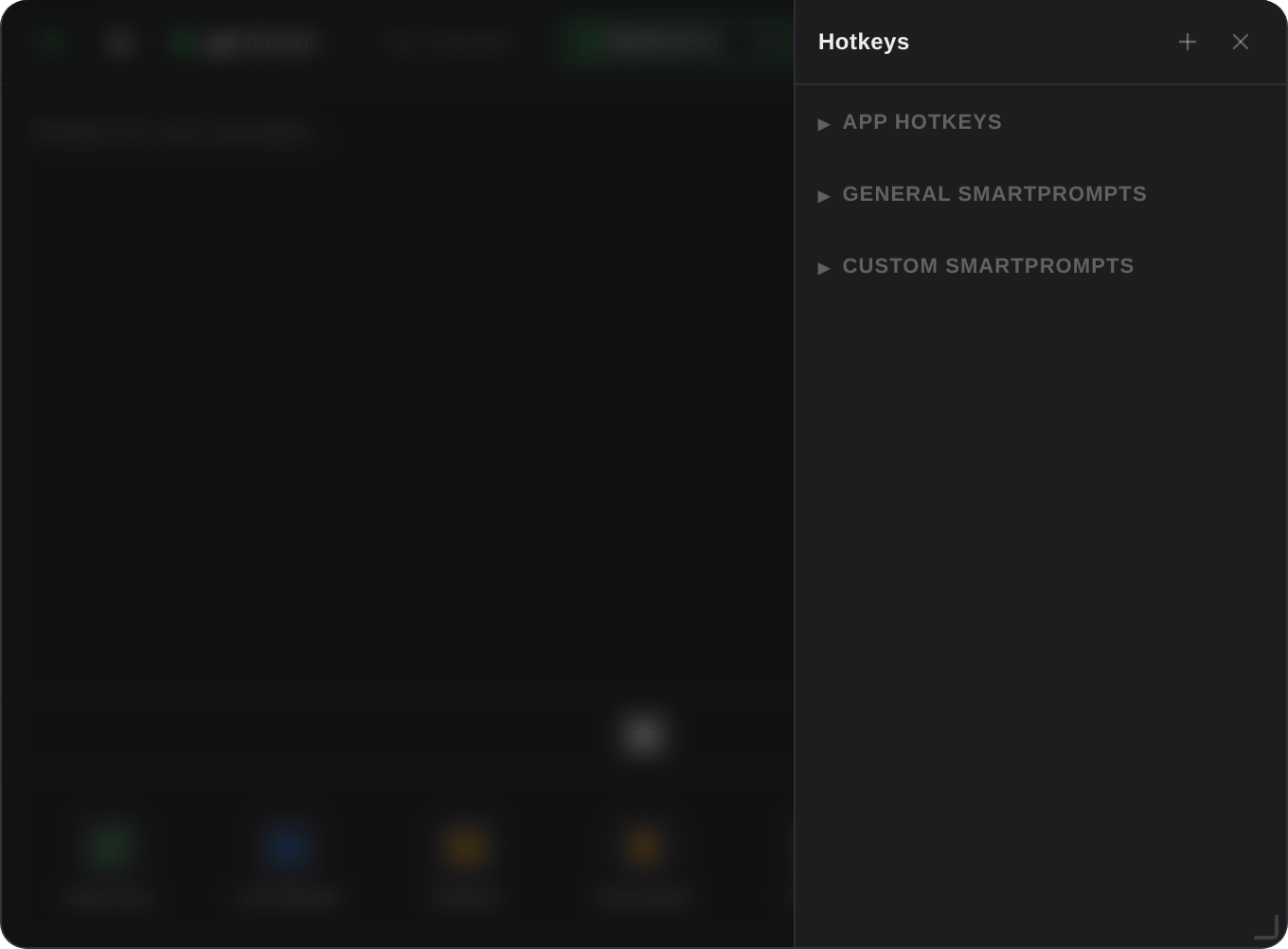
App Hotkeys
Nine built-in shortcuts. Every one can be remapped or switched off individually.
| Action | Default | Scope |
|---|---|---|
| Show / hide the window | Option+Space | Global |
| Toggle dictation | Cmd+D | Global |
| Toggle chat mode | Cmd+Shift+C | In window |
| Toggle magnets | Cmd+Shift+M | In window |
| Toggle scraping | Cmd+Shift+S | In window |
| Toggle always-on-top | Cmd+Shift+P | In window |
| Clear the conversation | Shift+Backspace | In window |
| Scroll to top | Home | In window |
| Scroll to bottom | End | In window |
Global means it works anywhere, whatever app you are in. In window means it only fires while Triplo has focus.
There is also a fixed shortcut: Cmd+Tab opens the SmartPrompt picker. It cannot be remapped.
Remapping one
Click the pencil beside it, press your new combination, save. The description is locked — you are changing the key, not the behaviour. The toggle beside each row disables it entirely, which is what you want when one collides with something your OS or another app already uses.
The in-window shortcuts without a Cmd, Ctrl or Option modifier — Home, End, Shift+Backspace — deliberately do not fire while you are typing in a text field, so they behave as normal editing keys there.
Dictation is not yet implemented in 7.0. The shortcut is registered and remappable, but pressing it currently does nothing. For voice input, use the microphone button in the prompt bar — see Voice input.
General SmartPrompt hotkeys
What they do. Bring the window up with a chosen SmartPrompt already submitted. The response appears in the chat as normal.
How to create one. Hotkeys drawer → General SmartPrompts → Add hotkey…. Give it a title, the prompt's command, and the key combination.
Use these for prompts that stand alone — a daily standup template, a question you ask often — where you want the answer on screen rather than pasted somewhere.
SmartPrompt hotkeys — background execution
This is the feature most people never find, and the one that changes how Triplo feels. A hotkey attached directly to a SmartPrompt runs it without the window appearing at all, on whatever you have selected, and pastes the result back where your cursor is.
Setting one up
Action grid → Prompts → edit, or create a new one.
This matters more here than anywhere else. Whatever comes back lands in your document, so the prompt must forbid preamble. End it with something like "Return only the rewritten text, with no explanation."
Conflicts with other prompts are flagged immediately. You cannot save over a conflict.
A model, instruction and Mind can all travel with the prompt. See Magnets.
The shortcut registers immediately, system-wide.
What Triplo does behind the scenes
- Notes which application is frontmost, so the result can be returned to it.
- Waits briefly for you to release the modifier keys before copying — otherwise the held keys interfere with the copy.
- Copies your selection, then restores your previous clipboard.
- Builds the prompt with your Instruction, Mind and language directive applied, exactly as a foreground prompt would be.
- Re-activates the app you were in and pastes at the cursor, replacing your selection.
Example — a rewrite key
Now, in any application: select a bloated paragraph, press Cmd+Shift+T, and it is replaced by a tighter one.
With an Automation instead
When the prompt carries an Automation magnet, nothing is pasted. Triplo extracts the parameters, brings the window forward to confirm, and fires the request. See Automations.
Limits & gotchas
- Do not put
//selected//in a prompt you will run by hotkey. The selection is captured automatically; the tag would add it twice. - Always single-turn. Chat mode does not apply, and nothing is saved to history.
- Nothing is pasted if the response is empty — a failure is silent by design, since a visible error would interrupt whatever you were doing. Enable the status dot to see failures.
- Pasting needs the same OS permission as capture. See Permissions.
- Applications that block synthetic keystrokes — some password managers, some secure fields — will not accept the paste.
- Your selection is replaced. Undo in the target app usually restores it, but a prompt that returns something unexpected has already overwritten your text. Test new hotkey prompts on something disposable.
Conflicts
Triplo checks across all three tiers when you assign a shortcut and names the conflicting item. It cannot, however, see shortcuts owned by your operating system or other applications — those simply fail to register, silently.
Combinations to avoid
| Platform | Already taken by the system |
|---|---|
| macOS | Cmd+Space (Spotlight), Cmd+Tab, Ctrl+↑/↓, Cmd+Shift+3/4/5 |
| Windows | Win+ almost anything, Ctrl+Shift+Esc, Alt+Tab |
| Linux | Depends on your desktop environment — check its keyboard settings |
Cmd+Shift+ a letter is generally the safest space for your own prompt hotkeys.
A shortcut that does nothing
- Check it is toggled on in the Hotkeys drawer.
- Check the SmartPrompt itself is active.
- Try a different combination — if the new one works, the original was claimed by something else.
- On macOS, confirm Accessibility permission is granted and Triplo has been restarted since.
More in Troubleshooting.