Settings Reference
Every setting in Triplo AI, what it defaults to, and what it actually changes.
Opening Settings
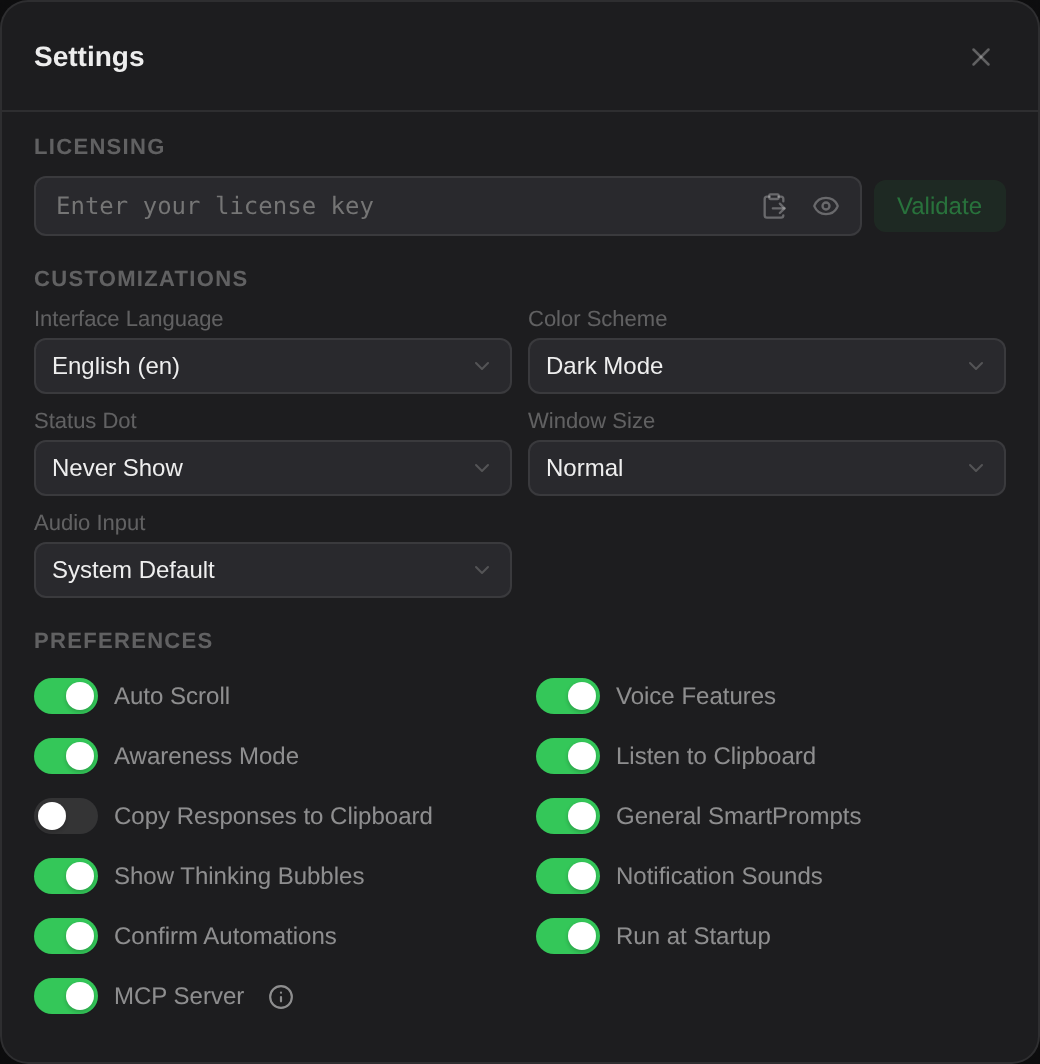
The gear icon at the top left of the window, or Settings from the tray menu. Three sections: Licensing, Customizations and Preferences. Changes apply immediately — there is no save button.
Licensing
Details of each licence state are in Getting Started.
Customizations
| Setting | Options | Default | What it does |
|---|---|---|---|
| Interface Language | 7 languages | English | Not active in 7.0. The selector saves your choice but the interface remains English. Not to be confused with the output language selector in the top bar, which does work. |
| Color Scheme | Dark · Light · System | System | Applies instantly. System follows your OS setting. |
| Status Dot | Hide on Idle · Always Show · Never Show | Never Show | See below. |
| Window Size | Normal · Large, plus Reset | Normal | Two width presets — Normal is 680 px, Large 860 px. Choosing either also returns the window to hugging its content. Reset discards a size you dragged. See Resizing the window. |
| Audio Input | System default, or a specific device | System default | Only shown when Voice Features is on. Lists your microphones. |
The status dot
A small draggable indicator in its own always-on-top window. It floats above everything, including full-screen apps and across all desktops, and it stays visible when the main window is hidden.
Drag it anywhere; the position is remembered and it is kept on-screen if your displays change. It is the only feedback you get when running prompts by background hotkey, so switching it to Hide on Idle is worth doing if you use those.
Resizing the window
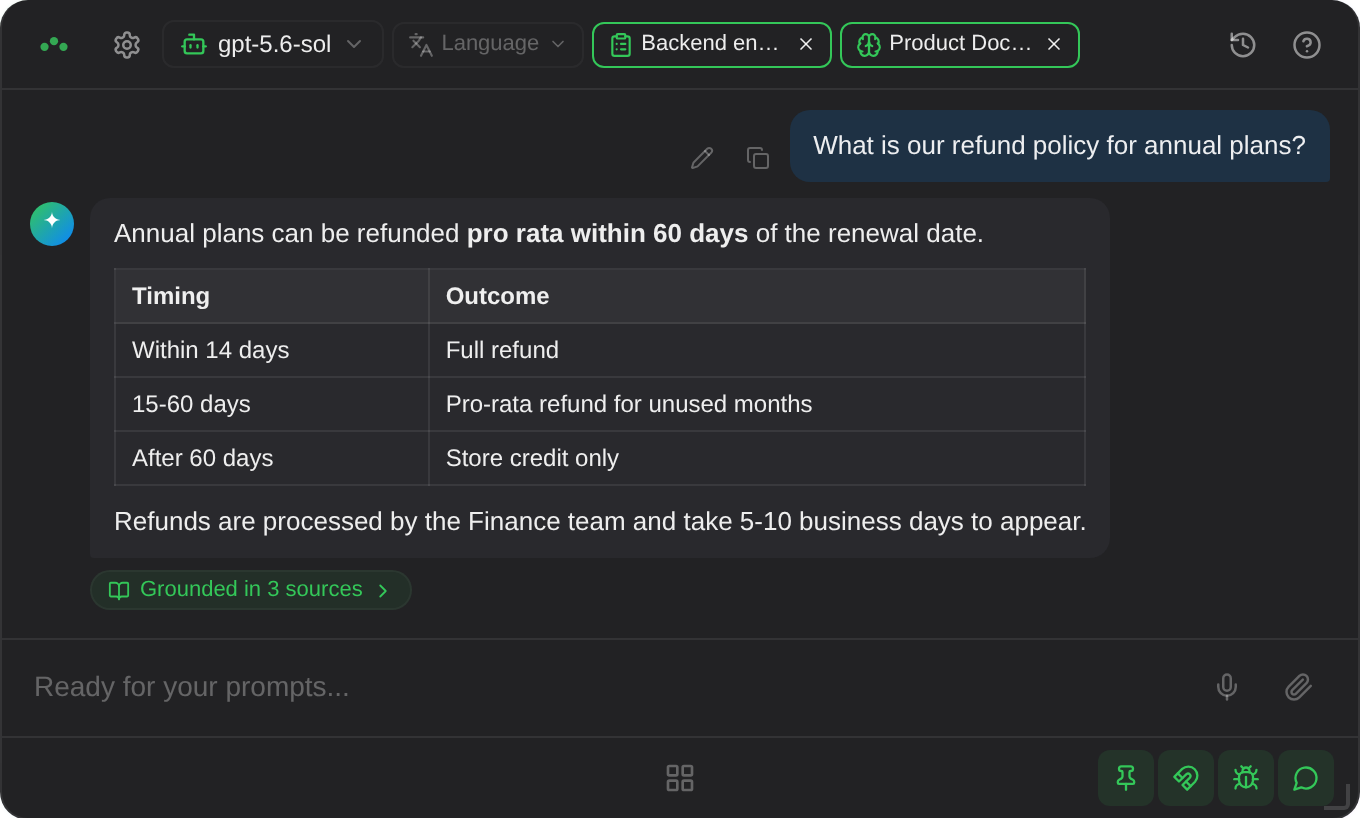
What it is. The main window can be resized freely by dragging any edge or corner, like any other window. Grab strips run along all four edges and sit in all four corners; a small grip in the bottom-right corner marks the most common one.
How to reach it. Move the pointer to the window's edge until the cursor changes, then drag. Nothing needs enabling first.
Two sizing modes
The window is in one of two modes, and dragging an edge is what switches between them.
The default, and how Triplo has always behaved. The window hugs its content: it grows when a conversation appears or a drawer opens, and shrinks back when they close. You never set a height.
Entered the moment you drag an edge. Your size is now the authority — the window stops resizing itself, and the layout fills whatever bounds you gave it. A conversation takes the spare height and scrolls inside it; the composer and bottom bar stay pinned.
Your size is remembered across restarts. To go back to auto, open Settings → Window Size and click Reset. Choosing the Normal or Large preset does the same thing, since picking a preset is itself an explicit size choice.
Limits
| Limit | Value | Why |
|---|---|---|
| Minimum width | 520 px | The narrowest width at which the top bar still reads properly with a model, a language, an instruction and a Mind all selected. Below it those chips collapse to bare icons. |
| Minimum height | 270 px | Clears the tallest arrangement the card can be in — top bar, conversation, composer, bottom bar and the action grid open together. Below it the grid's labels would be cut off. |
| Maximum | The display's work area | The window is kept on-screen, and re-checked against the current monitor when a saved size is restored — so unplugging a larger display never leaves it stranded off-screen. |
Dialogs keep their own size
Settings and the editors are fixed-size dialogs rather than elastic panes: they are meant to be presented at their designed size whatever you have done to the window. They render inside the window, though, so a window shorter than the dialog would squash it.
So in manual mode, opening a dialog temporarily grows the window to fit, and closing it puts your size back exactly. Three details follow from that:
- The window only ever grows for a dialog. It is never shrunk to match one.
- Nested dialogs — an editor opened from a drawer, say — each take their turn. The window returns to your size only once the last one has closed.
- If you drag an edge while a dialog is open, that becomes your size and the restore is dropped. Your most recent deliberate choice wins.
Limits & gotchas
- The window looks flatter while you drag. Background blurs and transitions are switched off for the duration of the gesture — they are expensive to redraw on every frame across a transparent window, and leaving them on makes the drag tear. Everything returns when you let go.
- Your operating system cannot resize it. Resizing runs entirely through Triplo's own handles, so OS window-snapping and resize shortcuts will not apply to the main window. This is deliberate — it is what keeps the frameless window free of the phantom borders it used to draw on Windows.
- The edge strips are thin — five pixels, and they stop short of the corners so they never steal a click from a control near the border. The corners themselves have a larger target.
- Resizing works while panels are open. The handles sit above Settings, the drawers and the history sidebar, so you can size the window with any of them on screen.
- Once in manual mode, the window stops following its content. If a long conversation now scrolls inside a short window, that is the mode working as intended — drag it taller, or click Reset.
Preferences
Eleven toggles.
| Preference | Default | What it does |
|---|---|---|
| Auto Scroll | On | Keeps the newest text in view as a response streams. Turn off to read earlier parts while generation continues. |
| Voice Features | Off | Shows the microphone in the prompt bar and reveals the Audio Input selector. See Voice input. |
| Awareness Mode | On | Enables //selected//. Switching it on prompts macOS for Accessibility permission. See Awareness. |
| Listen to Clipboard | On | Enables //clipboard//. Nothing is read until you send a prompt containing the tag. |
| Copy Responses to Clipboard | Off | Puts each completed response on your clipboard automatically. Overwrites whatever was there. |
| General SmartPrompts | On | Includes the built-in library in the / list. Off, only your own prompts appear. |
| Show Thinking Bubbles | On | Displays reasoning models' working above the answer. |
| Notification Sounds | On | A sound when a prompt is sent and when the response completes. |
| Confirm Automations | On | Shows extracted parameters for review before firing a request. Leave this on. See Automations. |
| Run at Startup | On | Launches Triplo when you log in. On Linux this writes an autostart entry. |
| MCP Server | Off | Runs the local knowledge server. The info icon beside it reveals endpoint and token. See MCP Server. |
Settings that live outside Settings
Four switches are in the bottom bar rather than the Settings panel, because you change them often.
| Toggle | Shortcut | Default | Effect |
|---|---|---|---|
| Keep window on top | Cmd+Shift+P | On | Off, the window hides as soon as it loses focus. |
| Auto snap magnets | Cmd+Shift+M | On | Off, every Magnet is ignored. |
| Web scraping | Cmd+Shift+S | On | Off, URLs are sent as bare links. See Scraping. |
| Chat mode | Cmd+Shift+C | On | Off, each prompt is independent. See Chat mode. |
The top bar holds four more per-prompt choices: model, output language, instruction and Mind. All persist across restarts.
Plan permissions
Some features are gated by your plan. Triplo reads the list when your licence validates; a locked feature shows an upgrade notice rather than failing silently.
| Feature | Gates |
|---|---|
| Chat Mode | Multi-turn conversations |
| URL Scraping | Pulling web pages into prompts |
| Awareness Mode | //selected// capture |
| Conversation History | Saving and reloading conversations |
| Custom Instructions | Creating and using Instructions |
| Voice Features | Recording and transcription |
| Automation Agents | Running automations |
| Minds / Training | Creating and using knowledge bases |
| Webhook Automations | Webhook-style automations |
| Local LLM | Ollama and LM Studio connections |
| Unlimited Hotkeys | More than one hotkey |
| Unlimited Prompts | More than three custom SmartPrompts |
With no licence key at all, nothing is gated — every feature is reachable so you can evaluate the app. Restrictions apply only once a key has been validated.
Help & About
The question mark at the top right.
Updates
Triplo AI keeps itself current from the official release feed, and never installs anything without asking. When a build is ready, a download icon appears in the top bar — hover it for the version, click it for the details.
The prompt names the version and warns that the app will restart. Restart & update installs it and relaunches; Later postpones it for four hours and asks again. Nothing installs in the background, so a run in progress is never interrupted.
If an update will not apply, the current build is always on the Downloads page.
File locations
| What | Where |
|---|---|
| All your content | ~/Documents/Triplo AI/ |
| Settings and licence | config.json in the user-data directory |
| Search indexes | Vectors/ in the user-data directory |
| Logs | The user-data directory |
| Platform | User-data directory |
|---|---|
| macOS | ~/Library/Application Support/Triplo AI/ |
| Windows | %APPDATA%\Triplo AI\ |
| Linux | ~/.config/Triplo AI/ |
The structure of the content folder is described in Core Concepts, and the file formats in Advanced Usage.