Devices & Sync
Running Triplo on several machines, sharing prompts between them, and taking a complete backup you can restore anywhere.
Devices
Your licence covers a number of devices. Each installation registers itself when you validate your key, identified by a machine fingerprint plus your CPU model and username.
Adding one
Install Triplo, open Settings, paste the same key, click Validate. If your plan has room, it activates. If it needs approval, it sits in Pending and flips to active automatically once approved — no need to click again.
Removing one
Two ways:
- From the device itself — Revoke in Settings releases the seat and clears the key locally. Use this before wiping or selling a machine.
- From the dashboard — Manage Devices in Settings opens control.triplo.ai, where you can see every registered device and remove one you no longer have access to.
Revoke before you reinstall your operating system. A fresh install produces a new machine fingerprint, so the old registration lingers and consumes a seat.
Backup and restore
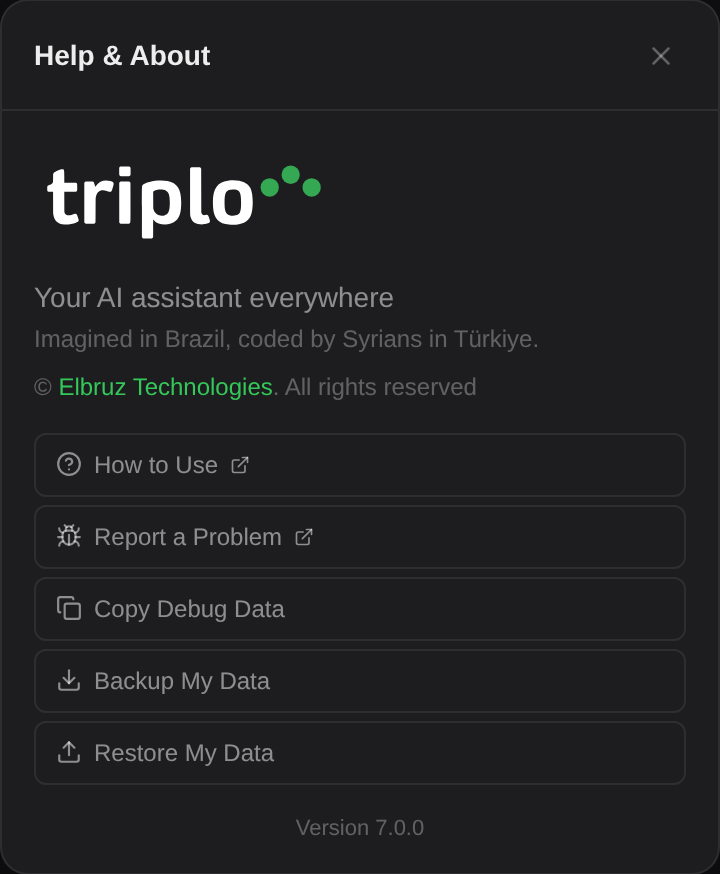
How to reach it. Help & About (the question mark, top right) → Backup My Data / Restore My Data.
What a backup contains
A single .zip, named with the date, holding your SmartPrompts, Instructions, Automations, Minds, History and your settings file — everything except the rebuildable search index.
| Included | Not included |
|---|---|
| Custom SmartPrompts | The vector search index (rebuilt automatically) |
| Instructions | Built-in SmartPrompts (they ship with the app) |
| Automations, including headers | Items shared to you from other devices |
| Minds — vault, originals and all | |
| Conversation history | |
| Settings, licence key, preferences |
A backup contains your licence key and any API tokens stored in automation headers, in readable form. Store it somewhere you would keep a password file, not a shared drive.
Restoring
Pick the .zip.
Every Triplo backup carries a manifest. Anything without it is rejected with "Not a Triplo backup file." — you cannot accidentally restore an unrelated archive.
A warning explains that this replaces your current prompts, instructions, training, history, automations and settings.
Automatically, so everything reloads cleanly. Minds re-index in the background afterwards.
What to use it for
- Moving to a new computer — the only way to bring Minds across, since ingested content does not sync.
- Before a big change — a restore point before reorganising your prompts.
- Ordinary backups — periodically, stored securely.
- Handing a setup to a colleague — bearing in mind it carries your licence key, so usually a poor choice; share individual prompt files instead.
Limits & gotchas
- Restore is all or nothing. There is no way to restore only your prompts. To cherry-pick, unzip the archive and copy individual
.mdfiles into your~/Documents/Triplo AI/folders — Triplo picks them up live. - Restoring overwrites the licence key in the backup, which may not be the one you want on this machine.
- A Mind with many documents makes a large archive; the originals in
files/are included in full.
The alternative: version control
Because everything is plain Markdown, you can put ~/Documents/Triplo AI/ under git and get versioning, diffs and multi-machine sync that is both finer-grained and fully under your control.
It suits people who already live in git, and it sidesteps the read-only constraint of Shares — every machine has an editable copy. See Version-control your setup for what to include and what to leave out.